Workspace
The agent's computer
Desktop, browser, terminal, files#
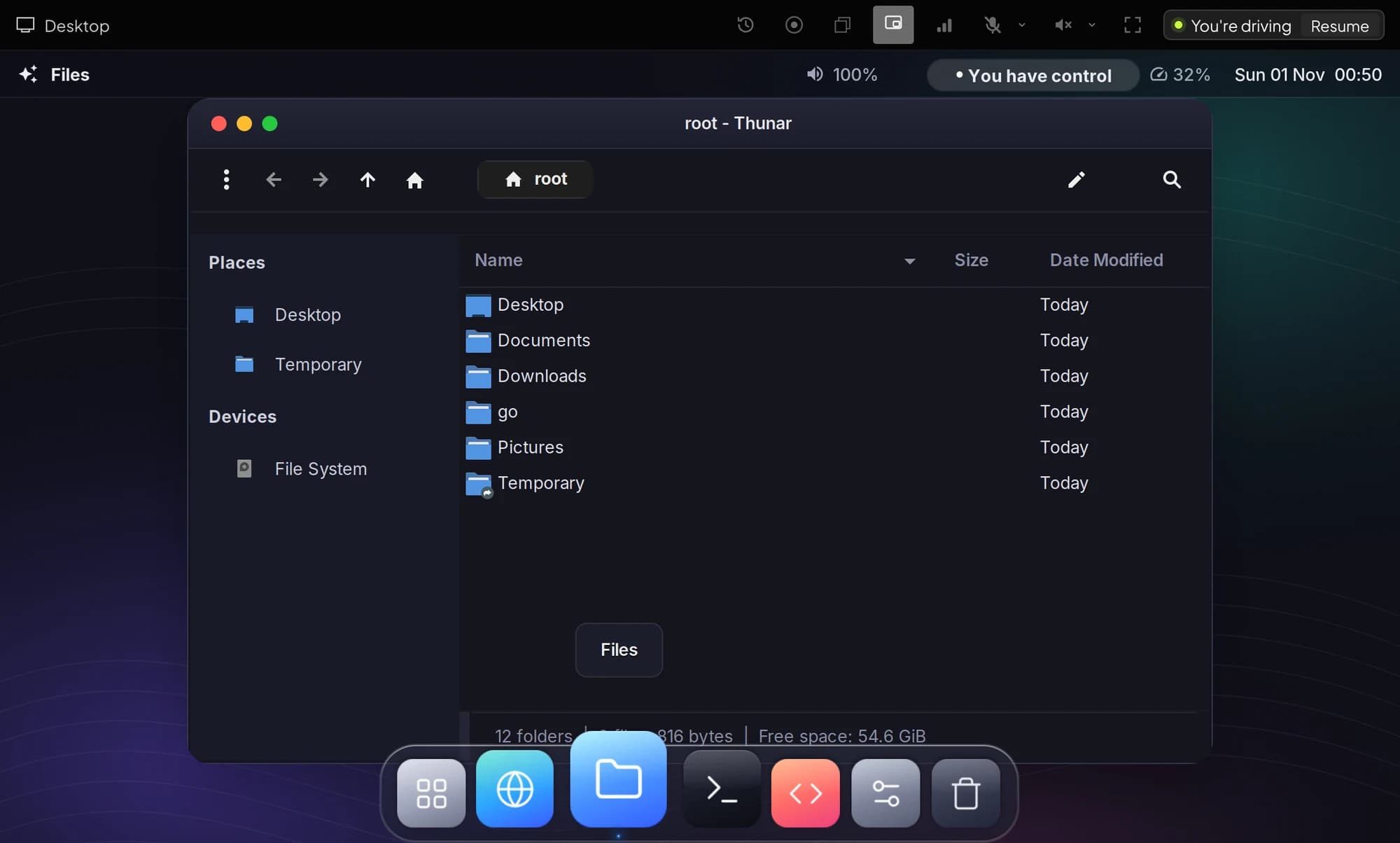
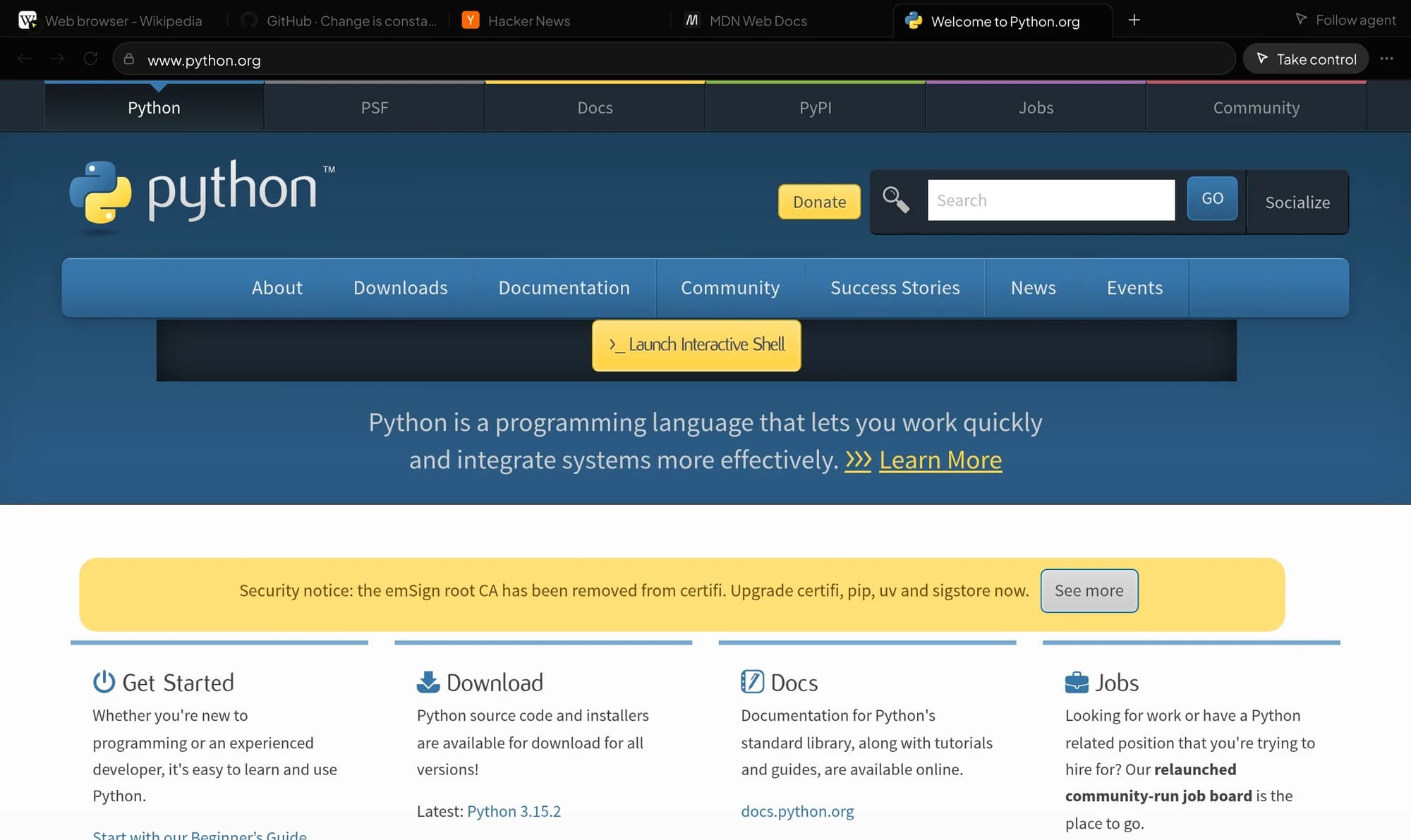
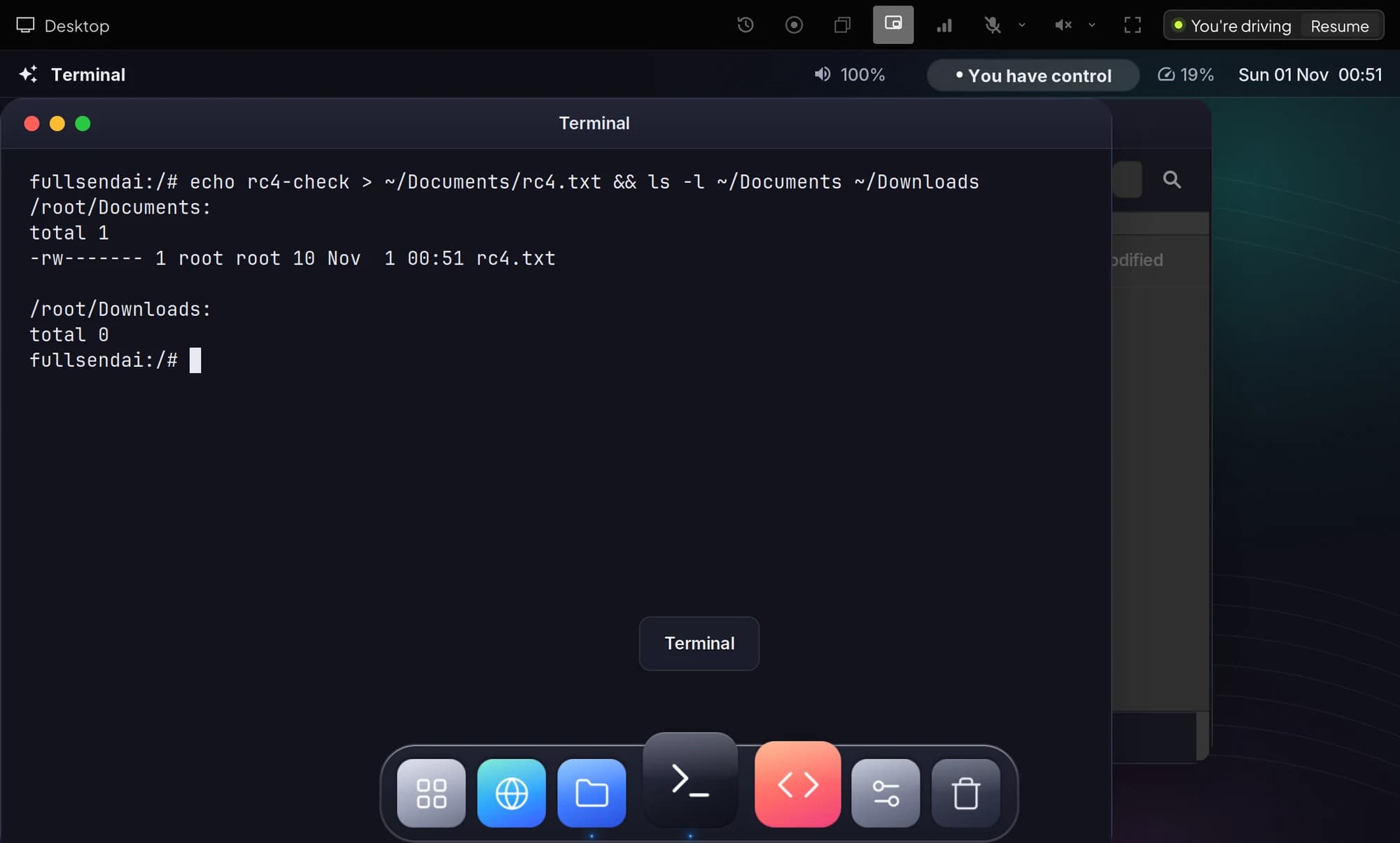
Open the agent's computer from the Computer button in a chat. Each surface opens as a tab beside the chat, or in its own window with Open in its own window.
| Surface | What it is |
|---|---|
| Desktop | A full Linux desktop with a dock, apps and windows, streamed to your browser. |
| Browser | A real browser with tabs. Follow the tab the agent is using, or browse yourself. |
| Terminal | A shell in the box. You see every command the agent runs, and can type your own. |
| Files | The workspace's files: browse, open, upload and download. |
Taking control#
The agent and you share one mouse and keyboard, so only one of you drives at a time. Choose Take control on the desktop or in the browser and the agent pauses; the toolbar shows You have control. Choose Resume, or press Ctrl Option Space, to hand it back and the agent continues from what is now on screen.
Pointing#
To show the agent something, use Point at something and tell the agent (Option-click, or ⌘ Shift P). Pin one or more spots on the screen, add a note, and send them to the chat. The agent gets the spots with your note.
Clipboard and files#
Clipboard
Copy and paste work between your computer and the box. Choose how in the clipboard menu:
| Mode | What happens |
|---|---|
| Follow my shortcuts | Paste and copy cross on ⌘V and ⌘C; anything else asks first. |
| Ask every time | A copy in the box waits for your click before it reaches your computer. |
| Off | Shortcuts work inside the box; nothing crosses. |
Moving files
Drop files or folders onto the desktop, browser or file view to upload them; progress shows under Transfers. When the agent offers a file, or you pick one in Files, it downloads to your computer.
Sound and microphone#
The desktop streams its sound. Turn it on or off and set the level in the toolbar. You can also send your microphone to the box, for apps that listen; it stays off until you turn it on.
Rewind and recording#
Rewind shows what happened on the desktop or browser, action by action. Step with the arrows (← →) and press Esc to go back to live. Save a short clip of any moment from the timeline.
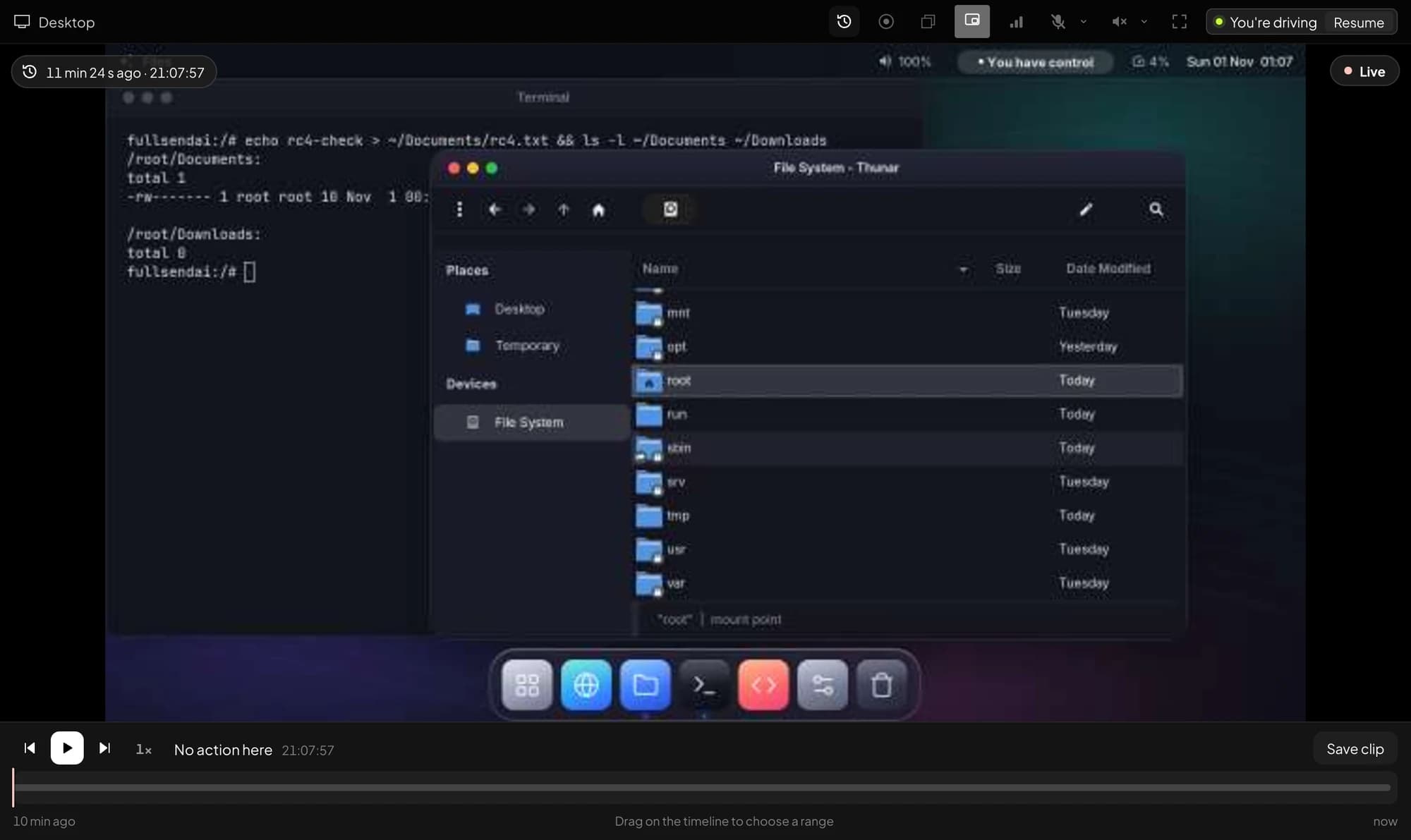
Record saves what you are watching as a video: the last 15, 30 or 60 seconds, or from now until you stop. Recording happens in your browser, so the file never leaves your computer and the box does no extra work.
Several boxes at once#
Big jobs can split up. The agent can start more boxes beside its own and hand each one part of the work, a site, a test suite or a dataset each, then gather the results. How many run at once depends on your plan; see Pricing. Each box is billed for the time it runs.
Stream quality#
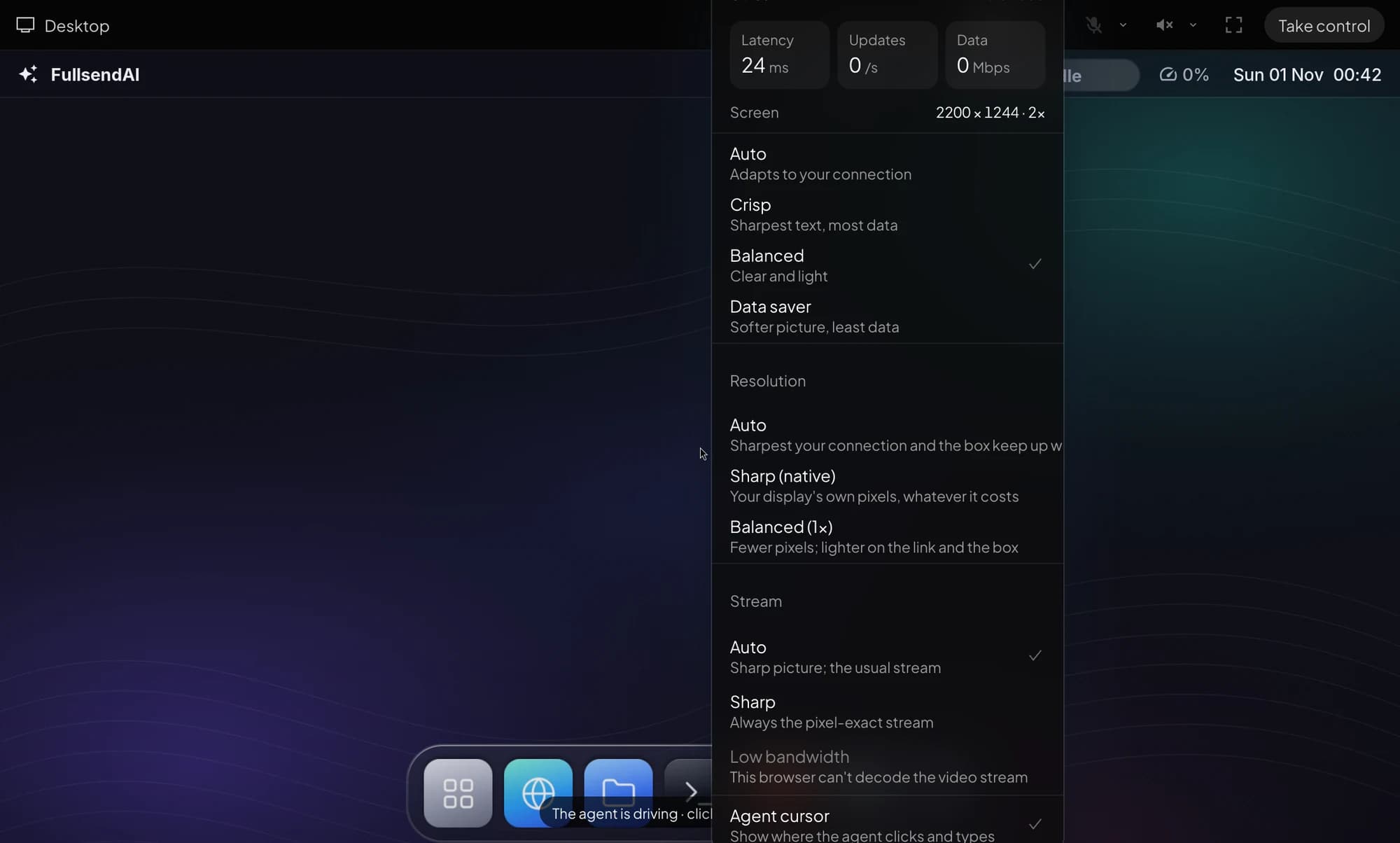
The stream adapts to your connection. In the stream menu you can favour sharpness or smoothness, change the resolution, or pick a data saver mode on a slow link. The menu also shows the connection's latency and how often the picture updates.
Stuck? Email [email protected]System statusChangelog